

Constraints#
Constraints guide the motion at specific frames or intervals. To learn about the types of constraints details of each, see the constraints concepts and constraints format pages.
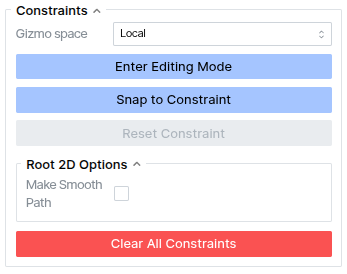
The constraint panel allows you to configure constraints and editing:
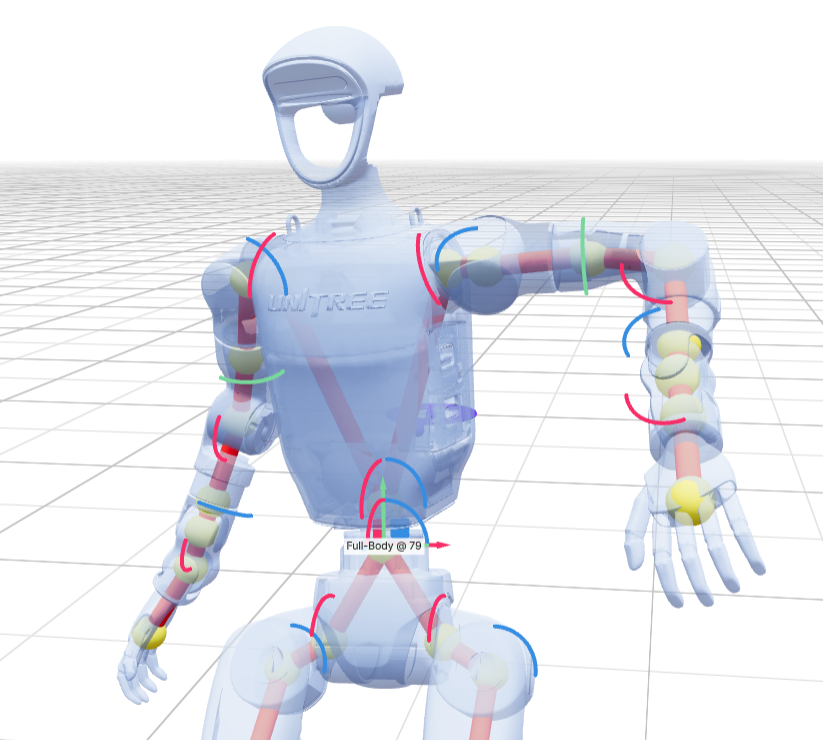
Enter Editing Mode: enable FK pose editing in the viewer. Gizmos will be displayed on joints that can be edited. If there is already a constraint on the timeline for the current frame, any pose editing will adjust that constraint, otherwise you need to add a constraint on the timeline after adjusting the pose.
Gizmo space: whether to display the rotation gizmos in local or global joint space while editing
Snap to Constraint: will snap the current frame of motion to the constraint at that frame. This can be useful if a generated pose does not exactly meet the constraint and you want to continue editing the constraint.
Reset Constraint: does the opposite by snapping the pose back to the original generated motion from the constrained pose.
Root 2D Options > Make Smooth Path: if you have laid down root waypoint constraints, checking this box will turn the waypoints into a smoothed dense path constraint. If there is not a waypoint at the first and last frames of the motion, they will be automatically added since Kimodo is only trained on full-sequence paths.
Clear All Constraints: clears all current constraints from the viewer and timeline.