Overview#
At a high level, Wheel is organized around a simple loop: define a slice with search, inspect the returned clips, curate or label the slice, and evaluate models on that same subset. The current search result serves as the shared input to all downstream workflows. This page gives a visual tour of the main interface and the core workflows it supports.
The main interface is divided into three areas:
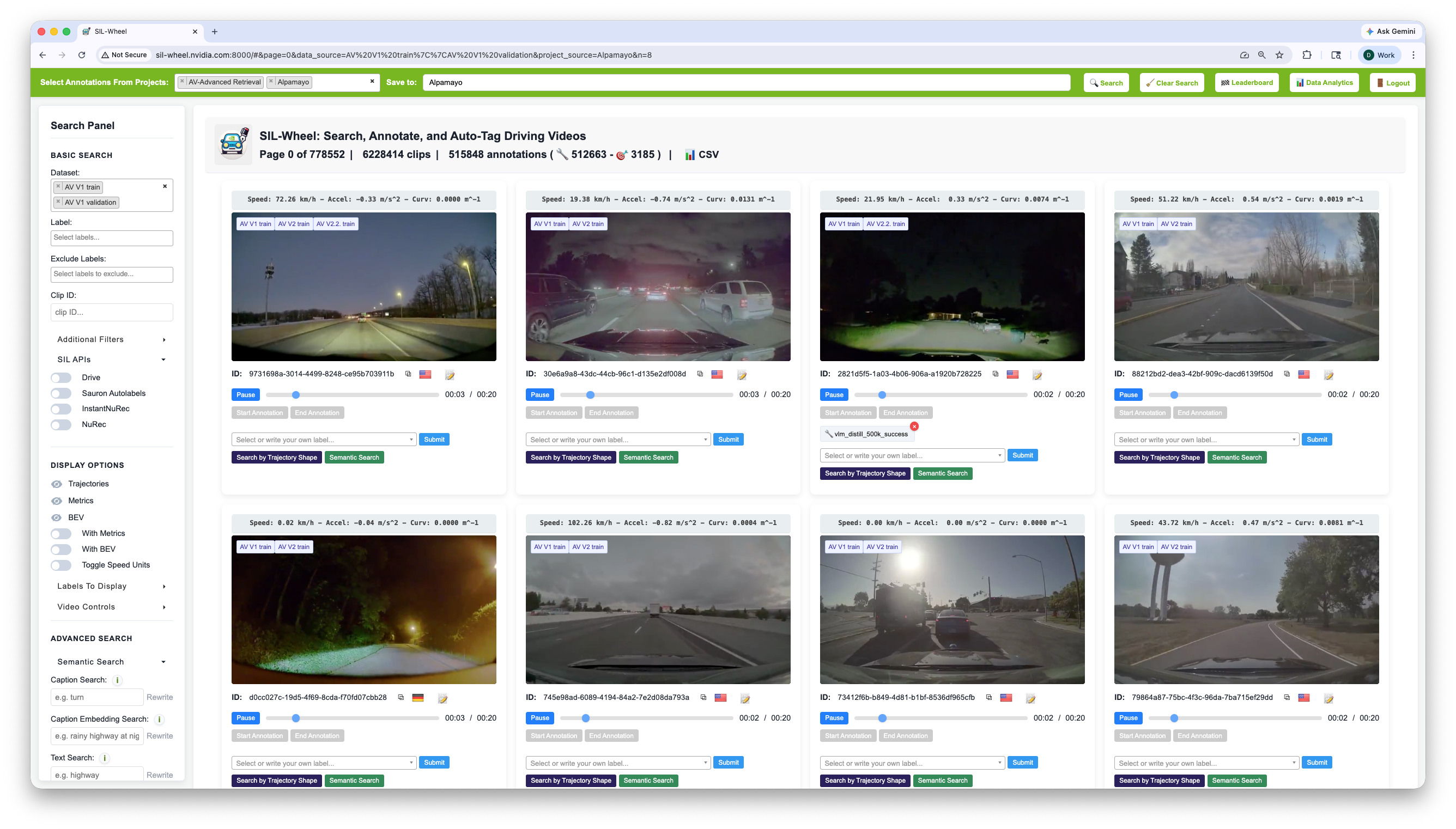
The main Wheel interface. Every retrieval modality is composed in the left panel, and results update in place as filters are added.#
Search panel (left): Controls retrieval and filtering. Users can choose which datasets to search over, filter by existing labels or metadata, and activate any combination of search modes, including caption search, semantic retrieval, trajectory search, classifier-based retrieval, and perception-based filters.
Clip grid (center): Displays the results of the current search. Each panel shows the clip together with captions, metadata, and annotation controls. A summary bar above the grid shows the total number of matching clips, the current page of results and the number of annotations for the selected projects.
Top navbar: Provides access to other pages, including the leaderboard, and lets users select the active project. The active project determines which annotation set is loaded and where newly created annotations are stored.
The clip grid updates as search parameters change. Annotation, search, results export, and evaluation all operate on the current result set.
Multimodal Search#
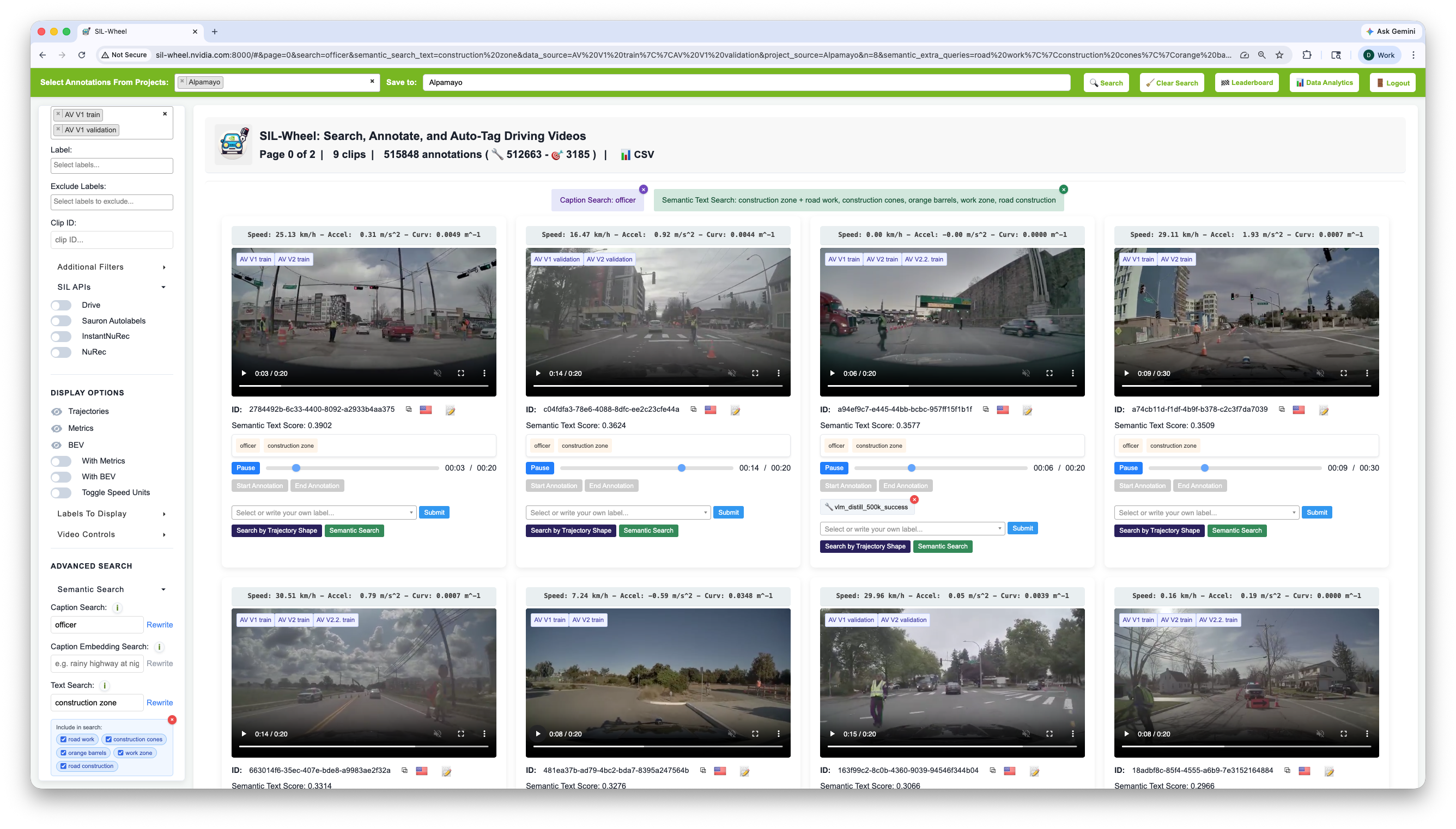
Results of caption keyword search officer and semantic text-based search construction zone with query rewriting.
Query rewriting extends semantic retrieval to additional queries similar to the original.#
Wheel supports multiple retrieval modes that can be activated independently or combined in the same query:
Caption keyword search over natural-language clip descriptions
Embedding-based caption search
Semantic retrieval using text-to-video or video-to-video embeddings
Frame-level visual search conditioned on text or image queries
Trajectory-based search by path shape or motion pattern
Perception-based filters by object class, count, proximity, or direction
Classifier-based retrieval using a trained scenario classifier
Metadata filters by dataset, geography, or annotation label
These modes are composable, making it possible to express scenarios that cannot be captured by a single signal alone. The results of any search can be exported to CSV via the Export Search button, and the URL hash encodes all active search parameters so any search can be shared or bookmarked by copying the browser URL. The URL structure and the parameter for each search mode are documented in Search URLs.
Clip Inspection#
Each clip in the result grid can be expanded to reveal all associated data:
Video: The clip plays directly in the browser, streamed from S3.
Annotations: Existing per-clip labels are shown with their type (manual or autolabel) and any associated time range if available.
Ego trajectory and motion statistics: The ego path is shown as a top-down geometric trace alongside key per-clip statistics such as mean speed, max acceleration, and curvature. These are the same signals used by trajectory search.
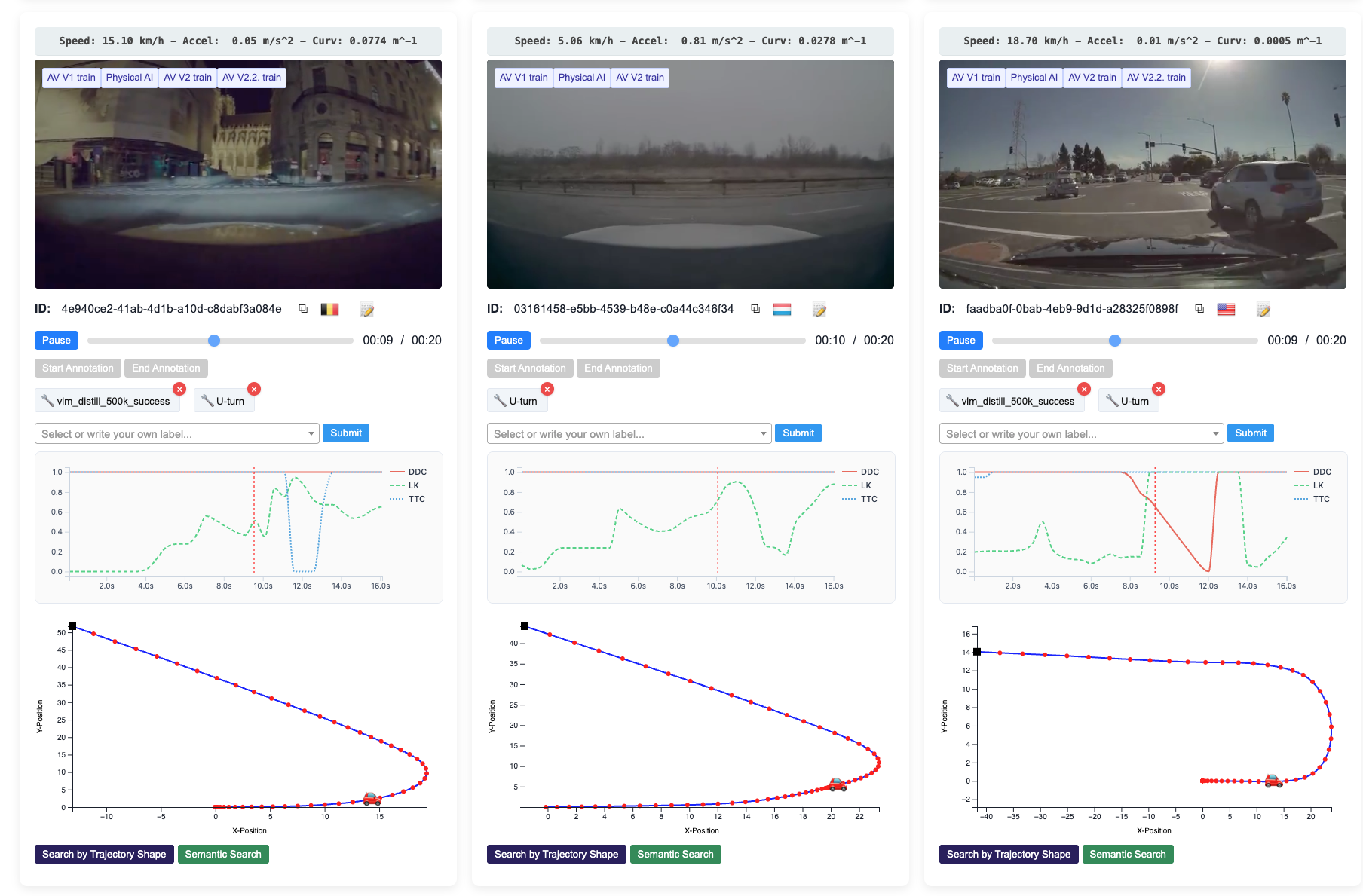
Clip view showing ego trajectory shape and ground-truth driving metrics.#
Model metrics: Per-clip scores from the ground-truth policy models are shown alongside the clip.
Bird’s-eye-view (BEV): A top-down scene layout showing detected objects and their positions around the ego vehicle, fetched from S3.
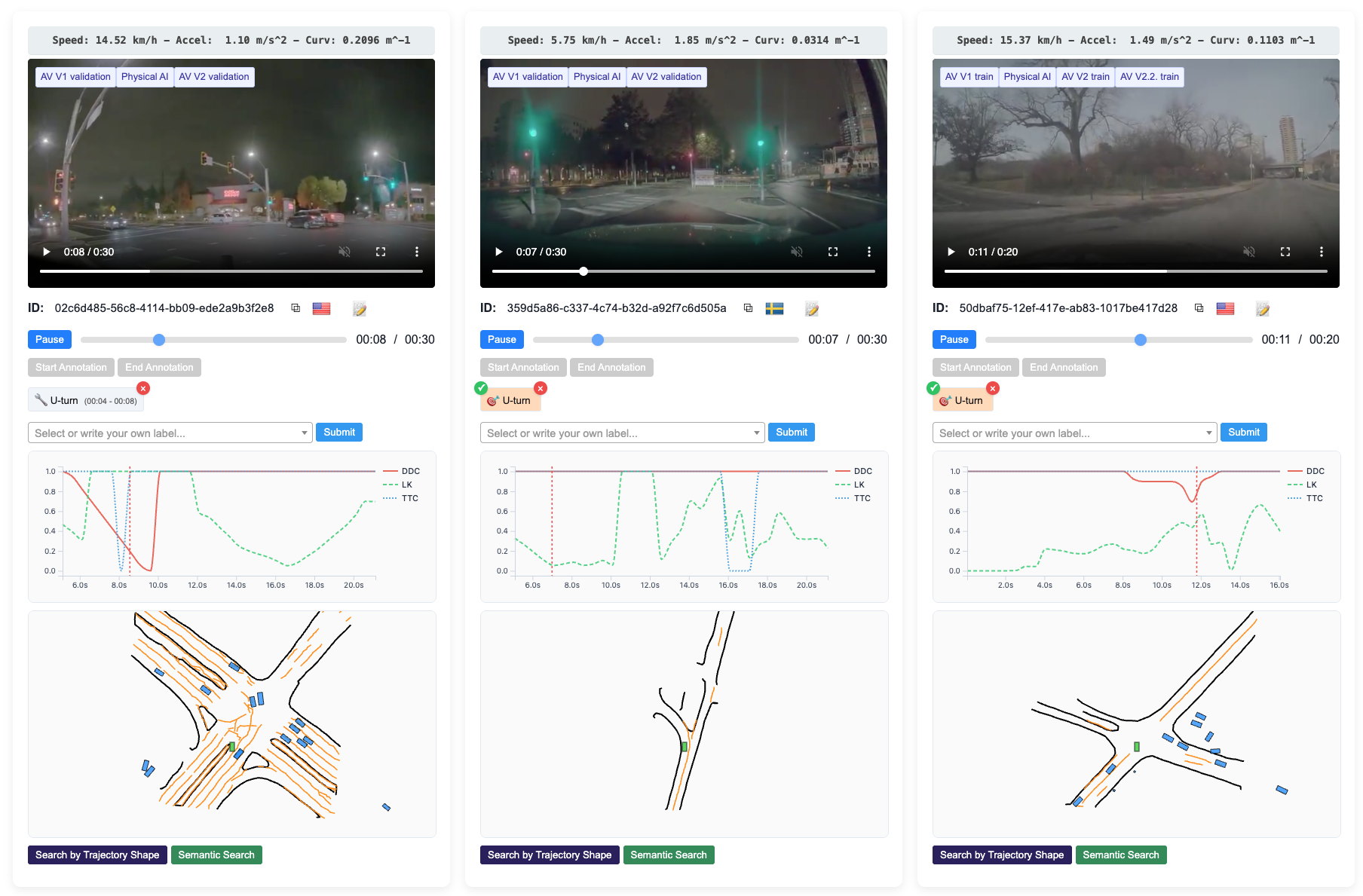
Clip view showing bird’s-eye-view scene layout and perception labels.#
Captions: All captions associated with the clip are shown, grouped by model. Each caption can cover the full clip or a specific time window. For caption keyword search results, the matched terms are highlighted directly in the caption text.
Inspection is a critical step before committing labels or building a benchmark: it lets users verify that returned clips actually match the intended scenario.
Annotation and Slice Curation#
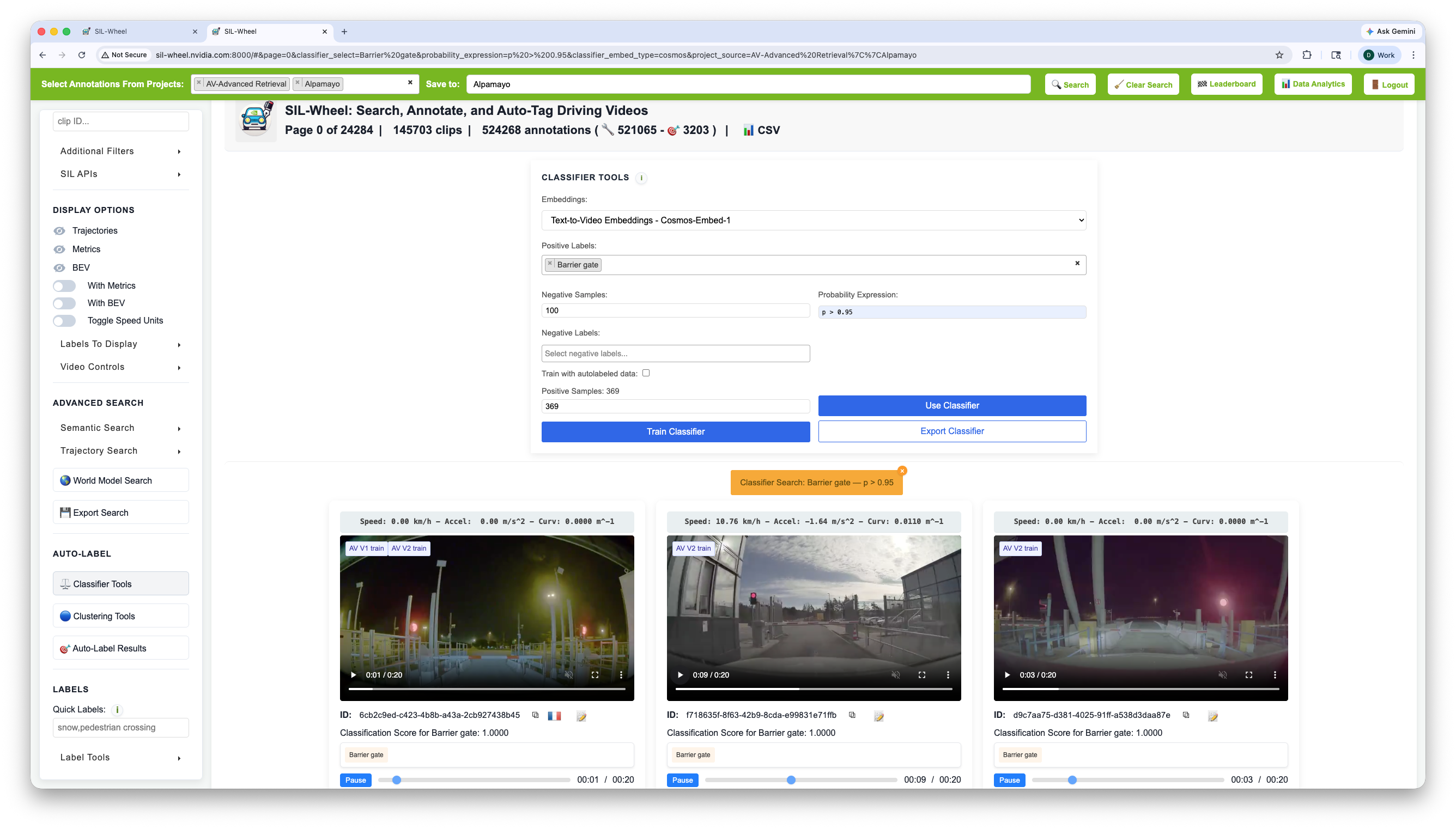
Classifier-driven retrieval used together with auto-labeling to scale a small set of manual annotations to a large slice. Starting from 369 manually annotated clips, a binary classifier was trained in seconds and used to retrieve 145,703 high-confidence matches across the full dataset.#
Wheel supports several ways to curate labeled slices:
Manual labeling: Apply categorical or numeric labels to individual clips either from a list of pre-existing labels or by creating a new one, optionally scoped to a time range within the clip.
Quick Labels: One-click label buttons that auto-populate from the active search context for high-throughput annotation sessions.
Auto-labeling: Apply a selected label to every clip in the current result set.
Label tools: Rename, merge, delete, import, or mass-edit labels across the annotation set.
These workflows make it possible to move directly from retrieval to dataset construction within the same interface.
Evaluation and Leaderboards#
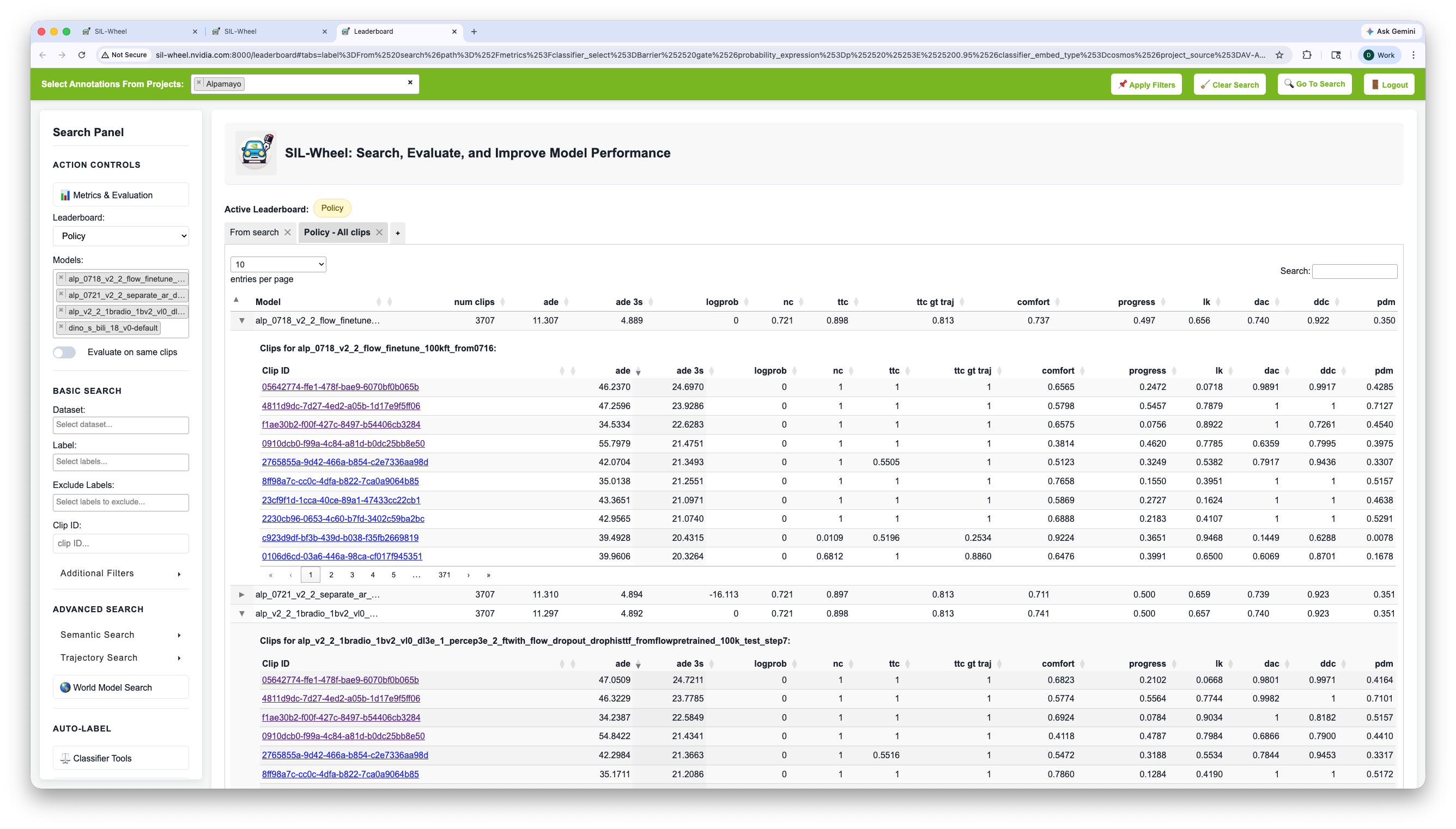
Leaderboard showing model metrics on the entire dataset.#
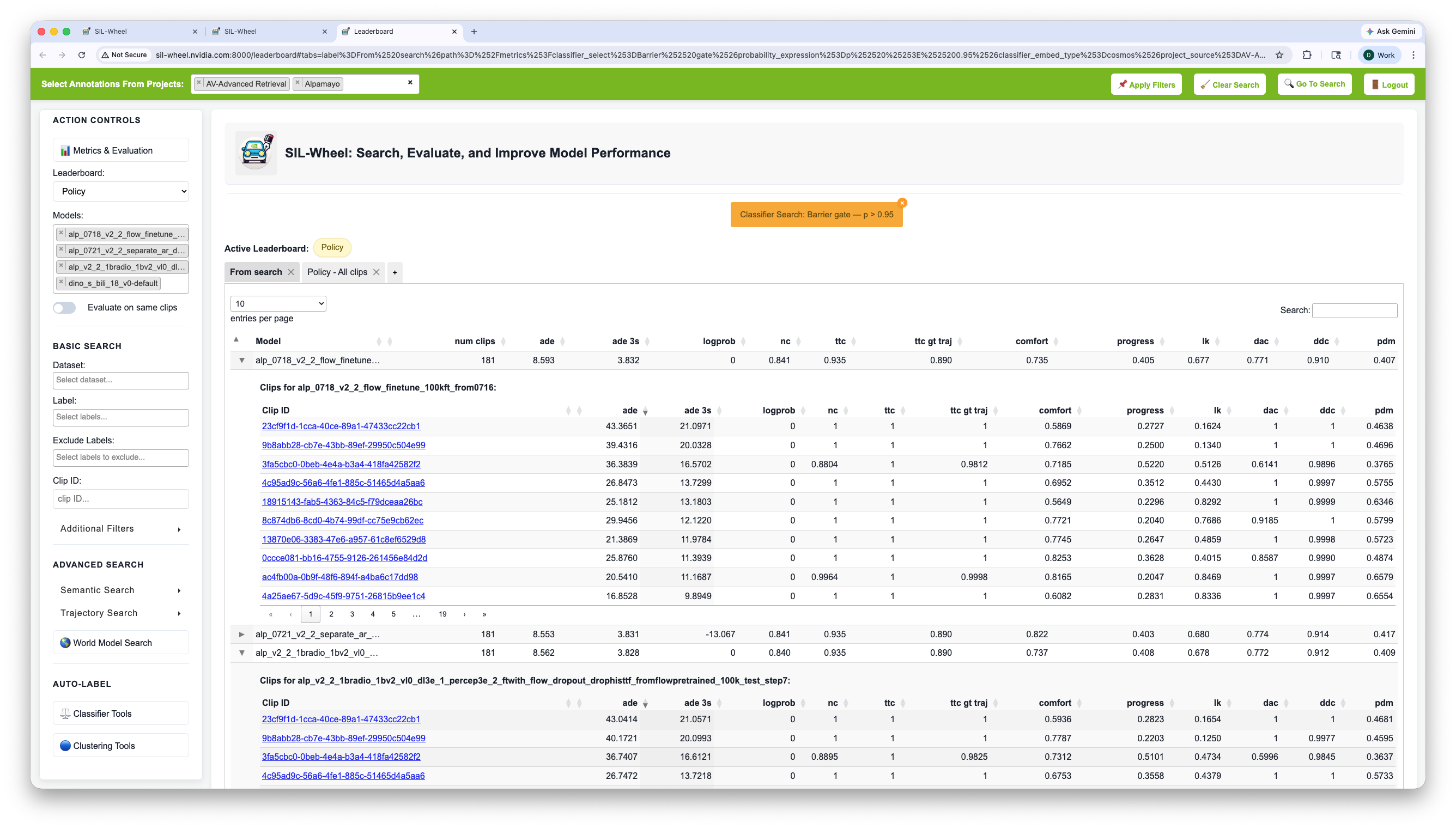
The same leaderboard filtered to a classifier-based search for barrier gate, showing how metrics shift on a targeted slice.#
Wheel supports evaluation on slices defined by search, rather than only on fixed global test sets. The same tools used to retrieve and curate a slice can also be used to measure model performance on it, making it easier to study targeted scenarios and identify failure modes that aggregate metrics may hide. Supported workflows include:
Project-specific leaderboards with per-slice metric aggregation
Per-clip score inspection and hard-example identification
Model comparison across leaderboard groups
Pairwise preference evaluation with Glicko-2 scoring via the Arena
Typical Workflow#
A common workflow in Wheel is:
Start with a scenario of interest and retrieve an initial slice with one or more search modes.
Inspect the returned clips to verify relevance and identify failure modes.
Label or expand the slice through manual annotation, classifier-based retrieval, or auto-labeling.
Export the search results for downstream applications or evaluate models on the slice directly in Wheel.
Iterate based on the resulting analysis.
Where to Go Next#
Search covers all retrieval modes and how to combine them.
Annotation covers labeling, auto-labeling, and other available operations for label manipulation.
Evaluation covers leaderboards, slice-based metrics and model predictions pages.
Power Features covers classifier bootstrapping, hard-example mining, and other multi-step workflows.
Agent Interface covers the natural-language interface for automated retrieval.
Search URLs documents the URL structure used to share and bookmark searches, with the parameter that corresponds to each search mode.