
Power Features#
This section covers workflows that combine multiple Wheel capabilities to accomplish tasks that would not be possible with any single feature alone.
Classifier Bootstrapping#
Classifier bootstrapping is the primary workflow for labeling rare or hard-to-describe scenarios at scale. It combines search, manual annotation, classifier training, and auto-labeling into an iterative loop that progressively scales a small number of human judgements to a much larger corpus.
The loop:
Run any search to retrieve an initial set of candidates. A caption or semantic search for a rough description of the scenario is a good starting point.
Manually annotate a small number of positive examples within the UI. A few dozen is usually sufficient to get a usable first classifier. Optionally annotate negatives to sharpen the decision boundary.
Open the Classifier panel, configure the training options (embedding type, number of negative samples, whether to include autolabels), and click Train Classifier. Training completes in seconds.
Switch to Classifier Search and retrieve clips scored above a high-confidence threshold (e.g.
p > 0.9). Inspect the results to assess quality.Use Auto-label to stamp the high-confidence results with the target label in one click.
Retrain the classifier with the expanded annotation set by checking Train with autolabels. The additional labeled examples shift the decision boundary and improve recall.
Repeat from step 4, progressively lowering the threshold or inspecting the boundary region (e.g.
0.7 < p < 0.9) to find more true positives.
Each iteration expands the labeled set and improves the classifier, making the next retrieval more precise. After a few rounds, the classifier can reliably surface the target scenario across millions of clips with minimal additional human review.
Note
The classifier can be trained on three embedding spaces: CosmosEmbed1 (video-level), Qwen3-Embedding-8B (caption-level), or Florence-2 / SigLIP2 (frame-level). Use CosmosEmbed1 for whole-clip scenarios, caption embeddings when the distinguishing factor is best expressed in language, and SigLIP2 when the target is a visually distinctive object, sign, or scene element that may appear only briefly. All three can be trained and used independently under the same label.
Data Flywheel#
Hard-example mining identifies the clips that are most challenging for a model and uses them to build targeted evaluation slices, training subsets, or seeds for further data collection. The strategy is the same whether the goal is to stress-test a model or to drive the next round of curation: surface failure modes from evaluation, find more clips that exhibit them, and close the loop.
The workflow:
Run a benchmark on a broad slice via the leaderboard to get per-clip model scores.
Inspect the leaderboard results to identify the clips with the lowest scores — these are the model’s hardest cases.
Inspect the hard examples to identify whether they share a common scenario (e.g. a particular weather condition, intersection type, or object configuration).
Use search (caption, semantic, trajectory, perception-based, or a combination) to retrieve more clips covering that scenario from the existing dataset.
Curate the slice: remove false positives manually or with label filters, then auto-label the remainder.
Use the curated slice as a hard benchmark and as a seed for a classifier that can be applied to incoming data to flag new examples of the same failure mode automatically.
This closes the loop between model evaluation and data curation: failures discovered in evaluation directly drive what gets annotated and collected next. The Agent Interface can automate steps 2–4 by combining leaderboard feedback with Wheel’s retrieval modes in a single natural-language request.
VLM Judge#
VLM Judge provides two distinct workflows that use a vision-language model to score clip caption quality and validate retrieval quality directly from video content.
Caption Scoring#
Caption scoring evaluates how well a caption describes a clip. The model returns attribute-level scores (scene, action, road entities, temporal, and overall) together with short reasoning.
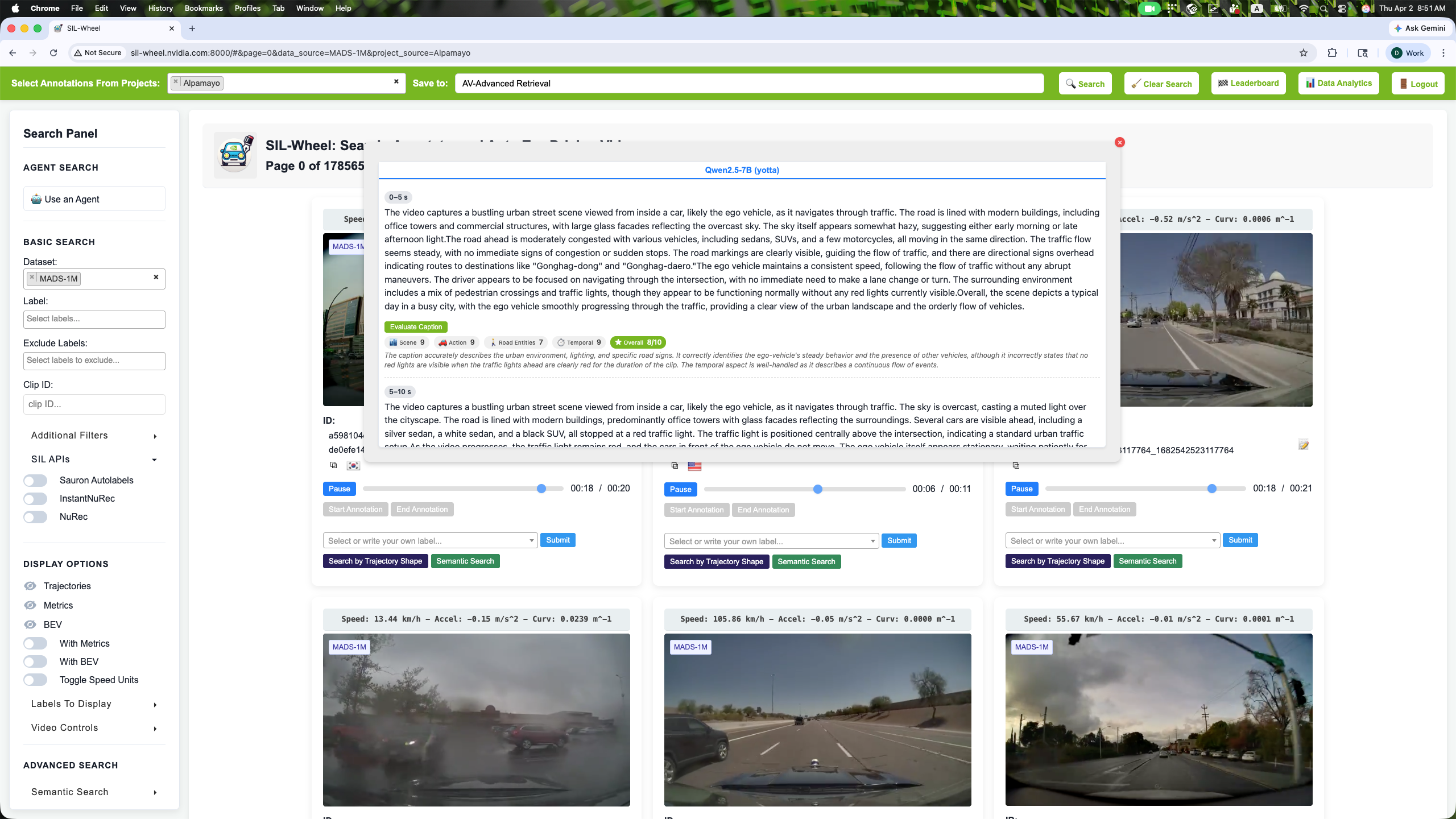
VLM Judge caption scoring flow in the annotation interface.#
The workflow:
Open a clip in the annotation interface and launch VLM Judge.
Provide or select the caption to evaluate.
Run caption scoring to get per-attribute quality scores plus reasoning.
Caption scoring is useful for caption QA, model comparison, and iterative caption-prompt development.
Search Validation#
Search validation adds a model-based precision check on top of retrieval results. It verifies whether top-ranked clips actually satisfy the active query.
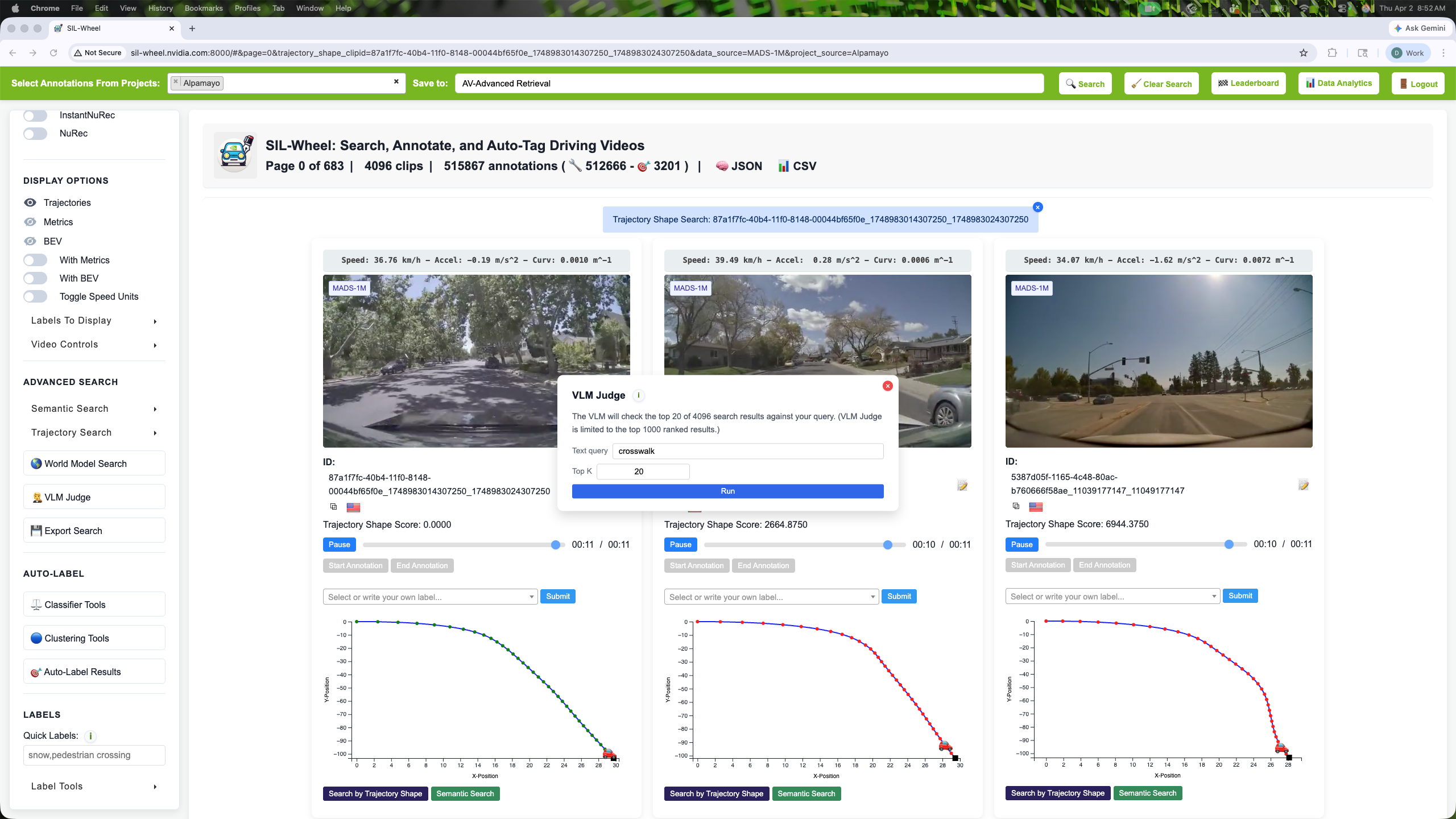
VLM Judge search validation flow in the Advanced Search panel.#
The workflow:
Run either caption search, caption embedding search, or semantic text search to retrieve a ranked list.
Open VLM Judge in the Auto-label panel and select the query and modality to validate.
Set Top K to choose how many of the highest-ranked clips to validate.
Run validation. For each clip, VLM Judge inspects sampled frames and returns structured reasoning plus a binary query-match prediction.
Use validated positives for review or auto-labeling, and use negatives to refine the query before rerunning retrieval.
This workflow is most useful when the retrieval query is broad or ambiguous: it quickly separates clearly relevant clips from borderline results so annotation effort focuses on high-value candidates.
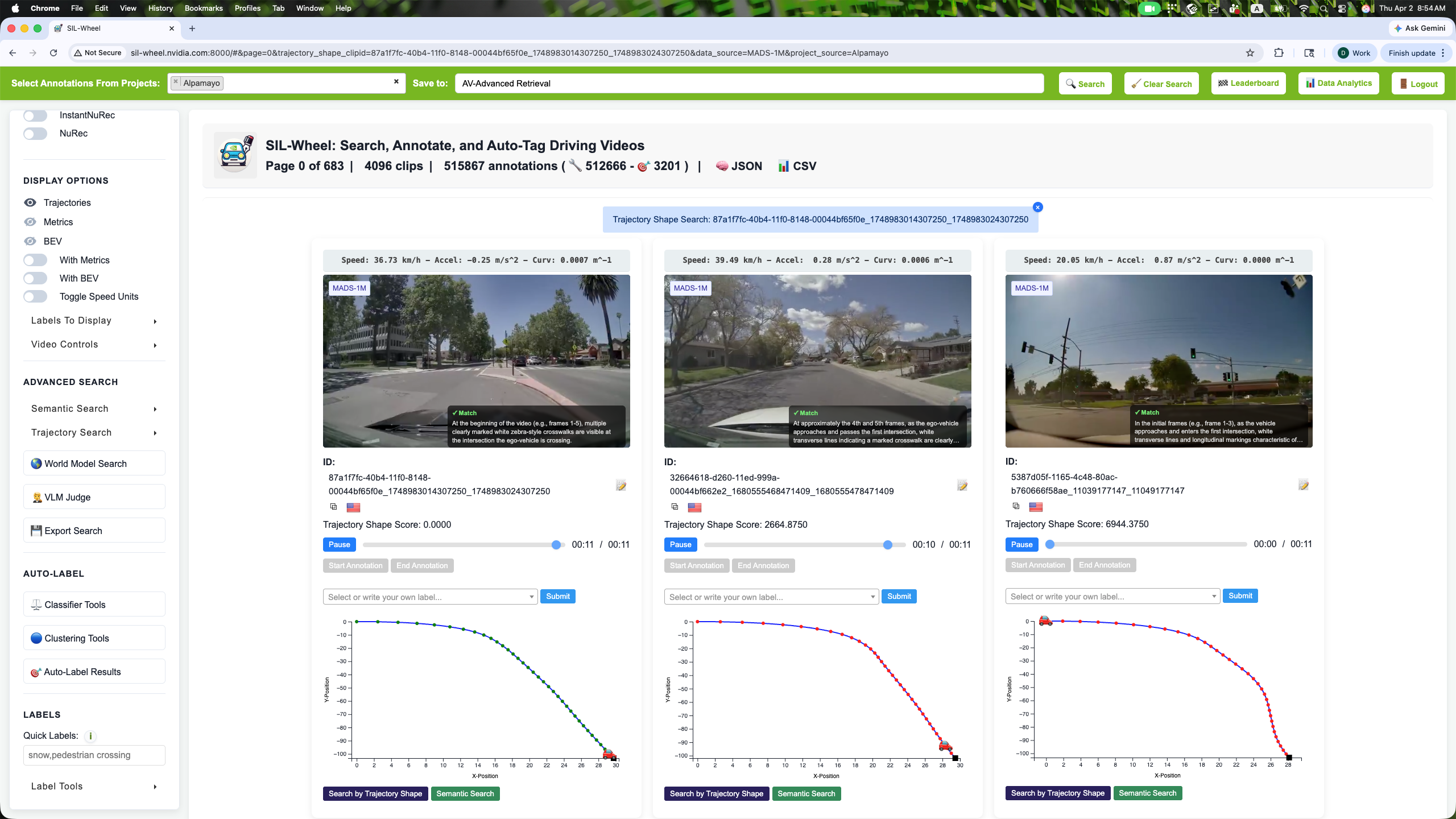
VLM Judge reviewing whether the retrieved videos contain a crosswalk. Each clip receives a match or no-match verdict, allowing users to filter out false positives before annotating.#
Note
VLM-Judge is available when a VLM provider is configured and VLM
dependencies are installed. With the default auto provider setting the
server uses OpenAI when OPENAI_API_KEY is set and otherwise falls back
to a local VLM that requires no API key. The UI reuses the active search
query and ranked IDs, and caps validation to the available top-ranked
results.
Agent-Driven Hybrid Search#
The SIL-Wheel Agent adds a natural-language interface on top of Wheel’s composable search modes. Rather than configuring filters manually, users describe a scenario in plain English and the agent selects, combines, and executes the appropriate search modes automatically.
For multi-strategy retrieval, the agent’s built-in
find_clips_for_scenario() method runs caption search, semantic search,
and matching classifier filters in parallel, then merges results via
reciprocal rank fusion. This surfaces clips that no single search mode would
rank highly on its own — for example, clips that match a caption keyword
and score well on a trained classifier and are semantically close to a
text description.
The agent can also chain retrieval with curation: starting from a seed set of clips, it expands the set through similarity search across visual and trajectory dimensions, then exports the result for annotation, training, or evaluation.
See Agent Interface for setup instructions, the full list of supported search modes, and Python/CLI usage examples.